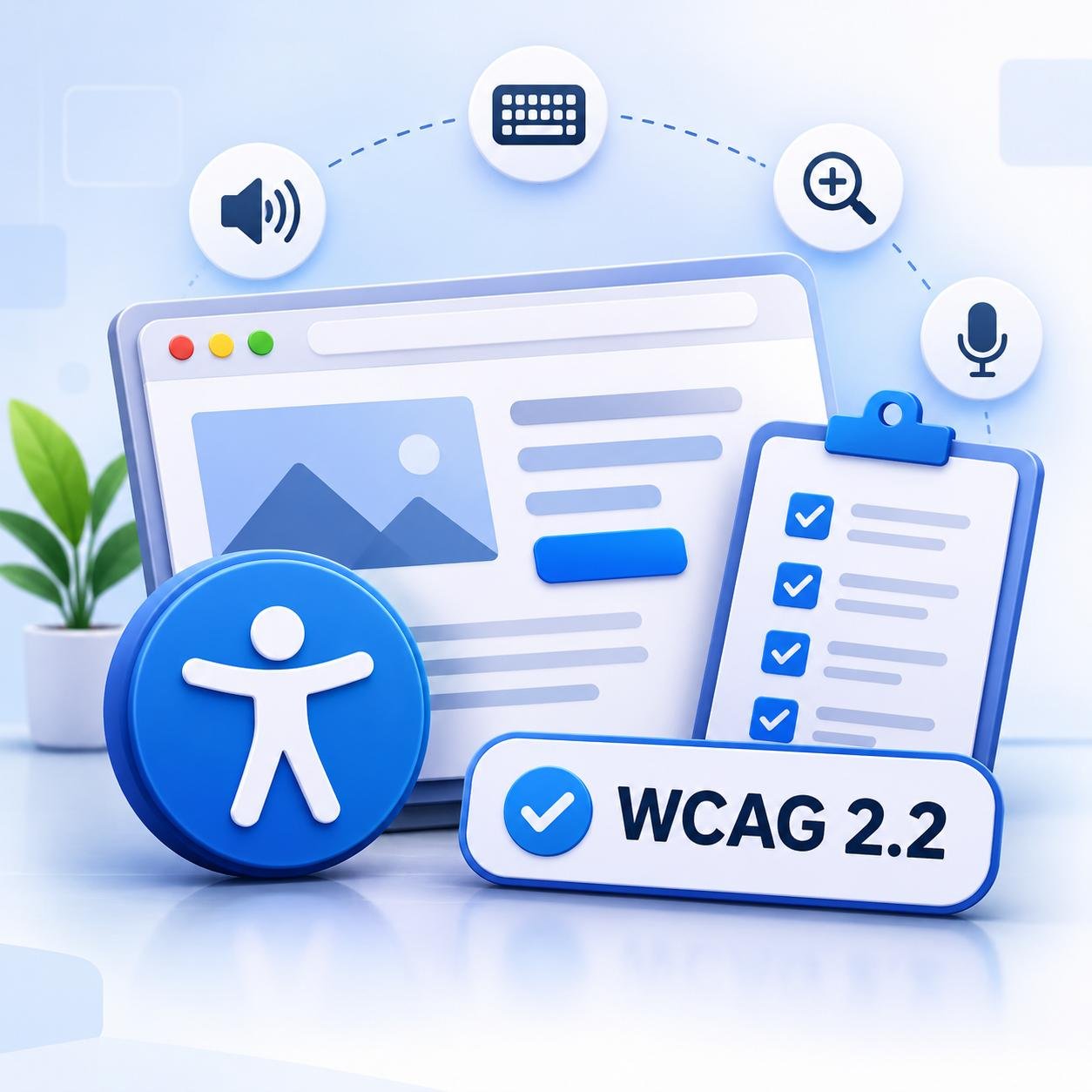
Quick answer: A website is accessible when people with disabilities can perceive, navigate and use it, whether they browse with a keyboard, a screen reader, magnification or voice control. The practical standard to follow is WCAG 2.2 at level AA. This checklist covers the fixes that matter most on a business website, in the order we would tackle them.
Accessibility is easy to put off because it sounds technical. In reality, most problems come from a short list of everyday habits: pale grey text, images without descriptions, forms without labels and buttons that only work with a mouse. The good news is that these are also some of the easiest problems to fix.
What website accessibility means
The Web Content Accessibility Guidelines (WCAG), published by the W3C, organise accessibility around four ideas. Your website should be:
- Perceivable: people can see, hear or otherwise take in the content, thanks to text alternatives, captions and readable contrast.
- Operable: people can use every control without a mouse, without time pressure and without getting stuck.
- Understandable: content, forms and error messages are clear and behave predictably.
- Robust: the site works with different browsers and with assistive technology such as screen readers.
Why accessibility matters for your business
An accessible website reaches more customers. That includes people with permanent disabilities, people with temporary ones such as a broken wrist, and people in difficult situations such as bright sunlight or a noisy train. It also tends to be cleaner and easier for everyone, which supports your website conversions.
Accessibility is not a ranking switch, but many accessibility fixes, such as clear headings, descriptive link text, alt text and meaningful page titles, are also good SEO practice.
Most sites still have work to do. The 2026 WebAIM Million report, WebAIM’s annual accessibility analysis of one million home pages, found detectable WCAG 2 failures on 95.9% of home pages, with an average of 56.1 errors per page.
Which accessibility standard should you follow?
WCAG 2.2 became a W3C Recommendation on 5 October 2023. It has three conformance levels: A, AA and AAA. Level AA is the usual target for business websites, and it is the level referenced by many accessibility policies.
WCAG 2.2 builds on versions 2.0 and 2.1. The older criteria are essentially unchanged, apart from the removal of 4.1.1 Parsing, which is obsolete. It adds nine new success criteria, three of them at level AAA. These are the six at levels A and AA, which affect most business sites:
| New in WCAG 2.2 | Level | What it means in plain English |
|---|---|---|
| 2.4.11 Focus Not Obscured (Minimum) | AA | When someone tabs to a link or button, a sticky header, cookie banner or chat widget must not completely hide it. |
| 2.5.7 Dragging Movements | AA | Anything that needs dragging, such as a slider or sortable list, also has a simple click or tap alternative. |
| 2.5.8 Target Size (Minimum) | AA | Buttons and links are at least 24 by 24 CSS pixels, or have enough spacing around them. |
| 3.2.6 Consistent Help | A | If you offer help, such as a contact link, chat or phone number, it appears in the same place across pages. |
| 3.3.7 Redundant Entry | A | People are not asked to retype information they already gave earlier in the same process. |
| 3.3.8 Accessible Authentication (Minimum) | AA | Logging in should not rely on memory or puzzle-solving alone. Allow pasting, password managers or another sign-in method. |
The website accessibility checklist
Work through these areas from top to bottom. Each one maps to WCAG success criteria, so you can use the list to brief a designer or developer.
1. Text, colour and layout
- Normal text has a contrast ratio of at least 4.5:1 against its background. Large text needs at least 3:1.
- Colour is never the only way to show meaning. A required field, an error or a selected option also needs text, an icon or a pattern.
- Text can be enlarged to 200% with browser zoom without losing content or function.
- Real text is used instead of text inside images, especially for offers and contact details.
- The layout works on a phone without sideways scrolling at normal zoom.
2. Images, video and audio
- Every meaningful image has alt text that describes its purpose, not just “image” or a file name.
- Decorative images have empty alt text (
alt="") so screen readers skip them. - A logo that links to the home page has alt text that says where the link goes.
- Videos have accurate captions, and audio has a transcript.
- Nothing plays automatically with sound, and moving content can be paused.
3. Keyboard and focus
- Everything that works with a mouse also works with the Tab, Enter, Space and arrow keys, including menus, sliders and pop-ups.
- The element you are on always has a clearly visible focus outline. Do not remove it with CSS.
- Pop-ups, modals and cookie banners can be closed with the keyboard, and keyboard focus is never trapped inside them.
- Sticky headers and banners do not cover the focused element, which is a new requirement in WCAG 2.2.
- A “skip to main content” link lets keyboard users bypass the menu.
4. Page structure and navigation
- Each page has a unique, descriptive title and one clear H1.
- Headings follow a logical order, with H3 under H2 and H2 under H1, and they describe the section. They are not used just to make text bigger.
- Link text makes sense out of context. “Read our accessibility guide” is better than “click here”.
- The page language is set in the HTML, so screen readers use the right pronunciation.
- Menus and navigation stay consistent from page to page.
5. Forms
- Every field has a visible, properly connected label, not just placeholder text.
- Required fields are marked with text, not only a red asterisk or a colour.
- Error messages say what went wrong and how to fix it.
- Information already entered is not requested again in the same process.
- Login and checkout pages allow pasting and password managers.
6. Buttons, links and touch targets
- Every button and link has a name. Icon-only buttons, such as a menu, search or close icon, need an accessible label.
- Tap targets are at least 24 by 24 CSS pixels, or spaced far enough apart to be easy to hit.
- Anything that needs dragging has a simple alternative.
- Links that open a new tab or download a file say so.
The six problems to fix first
If you only have time for one round of fixes, start with the failures WebAIM found most often across home pages in its 2026 report:
| Failure | Share of home pages | Typical fix |
|---|---|---|
| Low contrast text | 83.9% | Darken the text or lighten the background until it passes 4.5:1 (3:1 for large text). |
| Missing alternative text for images | 53.1% | Add descriptive alt text, and use empty alt text for decorative images. |
| Missing form input labels | 51% | Add a visible label connected to each field. |
| Empty links | 46.3% | Give every link readable text or an accessible name, especially icon links. |
| Empty buttons | 30.6% | Add text or an accessible label to icon buttons. |
| Missing document language | 13.5% | Set the language of the page in its HTML. |
How to test your website in 30 minutes
You do not need specialist tools to find the biggest problems. Try this routine on your home page, one service or product page and your contact form:
- Use the keyboard only. Put the mouse aside and tab through the page. Can you reach everything, see where you are and use every control?
- Zoom to 200%. Does anything overlap, disappear or become unusable?
- Run an automated scan. Free tools such as WAVE or Lighthouse catch many issues, including missing labels and low contrast.
- Listen to the page. Try a screen reader, such as VoiceOver on Apple devices or NVDA on Windows, on one key page and form.
- Break your forms on purpose. Submit them with mistakes and check that the error messages are clear.
Automated tools are a starting point, not a verdict. The U.S. Department of Justice’s ADA web guidance says to treat automated checkers and overlays as aids, notes that a clean report does not guarantee accessibility and recommends pairing them with manual review.
Accessibility and the law: a short orientation
Rules differ by country, and this section is general information, not legal advice.
- United States: the Department of Justice’s ADA web guidance covers businesses open to the public, including the goods and services they offer online. It does not set one technical standard, but it names WCAG as a helpful reference.
- European Union: the European Accessibility Act applies to services provided to consumers after 28 June 2025 and covers e-commerce services. Micro-enterprises that provide services are exempt.
Other countries, including the United Kingdom, have their own rules, so check the requirements where your customers are.
When to ask for professional help
Many fixes are quick: alt text, labels and colour tweaks. Bring in a web design and development team when:
- your theme or page builder produces inaccessible menus, sliders or pop-ups that you cannot change;
- you run an online store, booking system or login area, where forms and checkout need careful testing;
- you are planning a redesign and want accessibility built in from the start, which is usually easier than retrofitting it later;
- you want a documented audit with a prioritised list of fixes.
Accessibility fits naturally alongside good design, speed and upkeep. See our guides to responsive web design, mobile-first design, Core Web Vitals and our website maintenance checklist.
Website accessibility FAQ
What is WCAG?
WCAG stands for Web Content Accessibility Guidelines. It is the international set of testable guidelines published by the W3C that describes how to make web content accessible. The current version is WCAG 2.2.
Do I need to meet WCAG 2.2 AA?
That depends on the laws and contracts that apply to you. WCAG 2.2 level AA is the usual benchmark for business websites and the safest target to aim for. Laws such as the ADA do not prescribe a single technical standard, but they name WCAG as a helpful reference.
Can a plugin or overlay make my website accessible on its own?
No. Automated tools can find and fix some issues, but a clean automated report does not guarantee an accessible site. Combine tools with manual testing, and fix the underlying design and code where problems come from.
Does accessibility help SEO?
It overlaps with good SEO practice. Clear headings, descriptive link text, alt text, page titles and fast, stable pages help both people and search engines. Accessibility is not a ranking switch, so treat it as part of building a better site.
How much does it cost to make my website accessible?
It depends on the size of your website, how it is built, how many issues an audit finds and whether design changes are needed as well. Because every project is different, contact us for a quote.
Where should I start?
Start with the six problems in the table above, then test your home page, a service page and your contact form with the keyboard, zoom and a screen reader. Fix what you find, and add a quick accessibility check to every new page you publish.
Make your website easier for everyone to use
Technilizer designs and builds business websites with usability, speed and search visibility in mind. If you would like help auditing your current site or building accessibility into a new design, explore our web designing service or contact us for a quote.